Hello, I am Kartik Goyani, your tech expert. In this blog, I will help you download and install the Gravastar Mouse software (also known as Mercury Mouse Software) with a complete step-by-step guide.
The Gravastar Mercury series mice (M1 Pro, M2, X Pro, and others) are among the most popular wireless gaming mice right now.
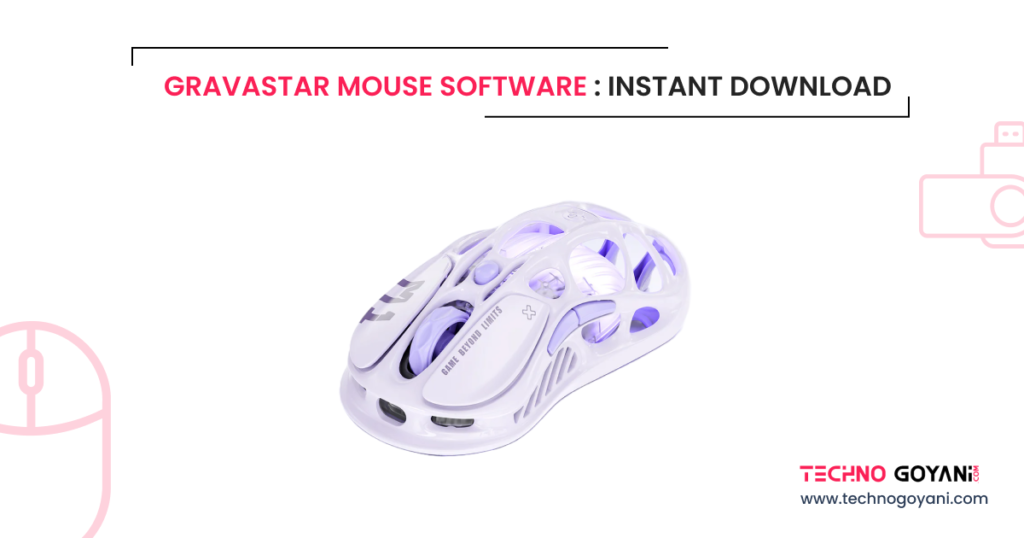
They deliver excellent performance with ultra-low latency, impressive battery life, and that signature sci-fi transparent design that looks incredible on any desk. The best part? They’re comfortable for long gaming sessions and very affordable for what they offer.
To unlock the full potential of your Gravastar mouse — customize DPI, polling rate, RGB lighting, buttons, macros, and more — you need the official Gravastar Mercury Mouse Software.
This free tool lets you fine-tune everything exactly how you want. No more generic settings. You get full control.
In this blog, we’ll cover everything: where to get the real software instantly, how to install it safely, and what you can actually do with it. Let’s get started!
What is Gravastar Mouse Software?
The Gravastar Mouse Software (officially called Mercury Mouse Software or Mercury Driver) is the dedicated customization program developed by Gravastar for their Mercury series wireless gaming mice, including models like the Mercury M1 Pro, M2, M2 Stealth Black, and similar variants.
It’s a lightweight, free Windows application (compatible with Windows XP and later, though it performs best on Windows 7 and above) that connects to your mouse via wired or 2.4GHz wireless mode.
Once installed, it gives you complete access to advanced settings that aren’t available through onboard controls alone.
- It’s the official driver/software straight from GravaStar — no third-party tools needed.
- Purpose-built for Mercury mice: supports high-end sensors like PAW3395, up to 26,000 DPI, adjustable polling rates (125 Hz to 1K Hz or higher on supported models), macro recording, button remapping, RGB lighting effects, LOD adjustment, motion sync, and firmware updates.
- There’s also a web-based version available for quick tweaks without full installation (great for Mac/Linux users or fast profile testing).
- If you’ve used older versions (like “Mercury Wireless Mouse” software), uninstall them first to avoid conflicts — the current version is streamlined and more feature-rich.
Key Features of Gravastar Mouse Software
The Gravastar Mercury Mouse Software packs a ton of powerful customization options into a clean, user-friendly interface. Here’s a breakdown of the standout features that make it essential for getting the absolute best performance and look from your Mercury series mouse:
- Multiple Profiles Support — Create and save up to 4 (or more on some models) custom profiles for different games or tasks (e.g., one for FPS with low DPI, another for productivity). Switch between them instantly via the software or hotkeys.
- Advanced DPI Customization — Fine-tune DPI settings from as low as 100 up to 26,000 DPI, with support for multiple stages (usually 4–6 levels). Assign colors to each DPI step for quick visual reference, and adjust steps via dedicated onboard buttons or software.
- Polling Rate Adjustment — Choose from 125 Hz, 250 Hz, 500 Hz, up to 1,000 Hz (or higher, like 4K/8K on Pro models with compatible dongles). Higher rates mean smoother, more responsive tracking—perfect for competitive gaming.
- Button Remapping & Macros — Remap almost all buttons (except primary left click) to any function or key combo. The built-in macro recorder lets you capture complex sequences easily—ideal for MOBAs, MMOs, or repetitive tasks.
- RGB Lighting Control — Customize the dynamic RGB effects with modes like Color Flow, Breathing, Constant, Neon, and Off. Adjust brightness, speed, and even set lights to turn off/on during movement to save battery or reduce distractions.
- Performance Tweaks — Dial in sensor settings, including LOD (Lift-Off Distance: 1mm or 2mm), motion sync, ripple correction, straight line correction, debounce time (0–19 ms), and sensor modes (Low Power, High Performance, Corded) for optimized accuracy and efficiency.
- Firmware Updates & Receiver Pairing — Keep your mouse up-to-date with the latest fixes and improvements. Easily pair or swap receivers (especially useful for upgrading to higher polling rate dongles).
- Battery Monitoring — Real-time battery status display so you know exactly when to recharge—especially handy for long wireless sessions.
- Multi-Language Support — Switch between English, Simplified/Traditional Chinese, Korean, Russian, Japanese, and more right in the app.
Download Gravastar Mouse Software
| Mouse Model | Online Driver (Mac & Linux & Windows) | Download Driver (Windows) |
|---|---|---|
| Download Driver (For All Wireless Gravastat Mice) | Online Driver | Download |
| Mercury X Pro Mice | Online Driver | Download |
| Mercury M1 Pro Mice | Online Driver | Download |
| Mercury M2 Mice | Online Driver | Download |
How to Install Gravastar Mouse Software?
Installing the Gravastar Mercury Mouse Software (also called Mercury Driver) is straightforward and takes just a couple of minutes. The process is primarily for Windows users, as the full desktop app is optimized for that platform (Windows XP and above, but best on Windows 7+). For Mac or Linux, use the web-based version mentioned earlier.
Important Notes Before Starting:
- If you have the older Mercury Wireless Mouse Software installed, uninstall it completely first to prevent conflicts. You can do this via Control Panel > Programs and Features.
- Download only from the official GravaStar website to ensure safety.
- Your mouse must be connected via USB cable (wired mode) or 2.4G wireless (with the receiver plugged in) for the software to detect it properly.
- Antivirus software (like Windows Defender) might flag the installer as it’s common with gaming drivers—it’s safe; allow it or add an exception.
Step-by-Step Installation Guide (Windows)
Look for the Mercury Mouse Software download section above and click the Download for Windows button. The file is typically hosted directly or via Google Drive for fast and reliable access.
Save the Installer
Save the File in your computer and extract it if it is in .zip format.
Run the Installer
Double-click the downloaded .exe file to launch it.
- If prompted by User Account Control (UAC), click Yes.
- Select your preferred language from the dropdown (English, Simplified Chinese, Traditional Chinese, Korean, Russian, Japanese, etc.) and confirm.
- Choose whether to add a desktop shortcut (recommended for quick access).
- Click Next.
Install the Software
Review the installation location (default is fine for most users).
Click Install and wait for the progress bar to reach 100%. This usually takes 20–60 seconds, depending on your system.
Once complete, the installer may offer to launch the software automatically—check the box if you want to open it right away.
Launch and Connect Your Mouse
Open the software (from desktop shortcut, Start menu, or auto-launch). Connect your Gravastar Mercury mouse:
- Wired: Plug it directly into your PC via USB.
- Wireless 2.4G: Insert the USB receiver into a port, then turn on the mouse (switch to 2.4G mode if it has multiple connection options). The software should automatically detect your mouse and load its settings. If it shows “offline” or no detection:
- Try switching to wired mode first.
- Restart the software.
- Ensure the receiver is paired (some models require pressing a button on the mouse or receiver).
Installation complete! You’re now ready to customize DPI, RGB, macros, and more.
For Mac/Linux Users (No Full Install Needed):
Use the official web-based version at Here. Connect your mouse, open the link in Chrome or Edge, and configure settings directly in your browser—no download or installation required.
Troubleshooting Common Issues:
- No detection? Replug the receiver/mouse, restart PC, or try a different USB port.
- Old version conflict? Uninstall previous software via Control Panel and reboot.
- Download issues? Clear browser cache or try another browser.
- Firmware needed? The software has a built-in updater—check the System tab after installation.
Conclusion
That’s it—simple and quick. Once installed, dive into the features section to personalize your mouse! If you run into any hiccups, drop your mouse model and error details in the comments.