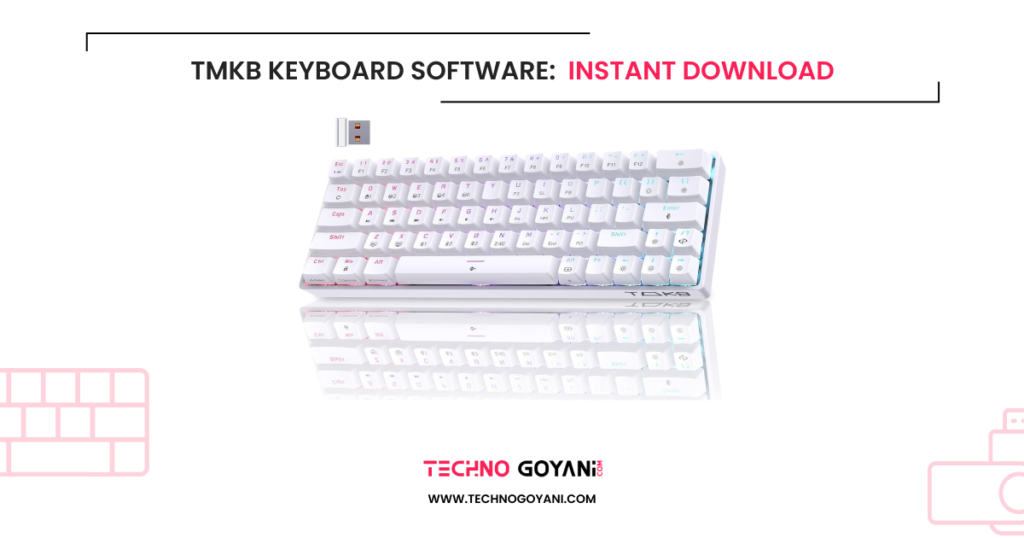
Do you have a TMKB keyboard? (It’s a really cool keyboard built for smooth typing and awesome lighting effects!)
Want to customize how your keyboard works? Like remapping keys, creating shortcuts, or tweaking the RGB lighting?
There’s a special computer program (called software) that makes all of this super easy. It lets you set up your keyboard exactly the way you like it.
Hey, I’m Kartik. In this simple guide, I’ll walk you through step by step how to download and install the TMKB Keyboard Software so you can start customizing your keyboard and enjoy a better typing and gaming experience right away!
What is TMKB Keyboard Software?
TMKB Keyboard Software (also called TMKB driver or control hub) is a utility program that allows users to customize and control TMKB mechanical keyboards. With this software, users can remap keys, create macros, customize RGB lighting, and manage keyboard performance settings.
TMKB keyboards are developed by brands connected with Kemove and Dierya, which focus on creating customizable and high-performance mechanical keyboards for gamers and professionals.
Without the software, your keyboard will still work, but you won’t be able to access advanced customization features.
Key Features of TMKB Keyboard Software
TMKB software offers a wide range of customization features designed for gaming, productivity, and personalization.
1. Key Remapping
You can change the function of any key on your keyboard.
Examples:
- Swap Caps Lock → Ctrl
- Change F1 → Open Browser
- Create shortcuts for apps
This is especially useful for developers and gamers.
2. Macro Recording
The software allows you to record macros, which are automated sequences of keystrokes.
Example macros:
| Use Case | Macro Action |
|---|---|
| Gaming | One key triggers multiple actions |
| Productivity | Insert email signature |
| Programming | Insert common code snippets |
3. RGB Lighting Customization
Most TMKB keyboards include RGB backlighting.
Using the software, you can:
- Change lighting effects
- Adjust brightness
- Set color patterns
- Create custom lighting profiles
Many models support multiple lighting modes and profiles.
4. Profile Management
You can create multiple profiles, such as:
- Gaming profile
- Work profile
- Programming profile
Switch profiles instantly based on your task.
5. Key Combination Settings
TMKB software allows users to assign multi-key commands to a single key.
Example:
Ctrl + Alt + Deltriggered by pressing one key.
6. Firmware Updates
The software may also provide firmware updates that improve:
- Keyboard performance
- Compatibility
- Bug fixes
7. Device Management
Some keyboards support multiple connection types:
- USB
- Bluetooth
- 2.4GHz wireless
The software helps manage these modes.
Download TMKB Keyboard Software
| Brand | Model | OS | Driver |
|---|---|---|---|
| TMKB | T63 | Windows | Download |
| TMKB | GK61 | Windows | Download |
| TMKB | T83 | Windows | Download |
| TMKB | T68-C, DK68–C | Web | Online Driver |
| TMKB | T68, T63, T68E, T81E | Web | Online Driver |
| TMKB | T61SE, T68SE | Web | Online Driver |
| TMKB | T84SE, T87SE, T98SE, DK98SE | Windows | Download |
Always download drivers that match your specific model because using the wrong driver may cause keyboard issues.
How to Install TMKB Keyboard Software?
Installing the TMKB keyboard software is simple.
Step 1: Download the Driver
Download the correct software for your keyboard model.
You will usually get a ZIP file.
Step 2: Extract the File
Right-click the downloaded file and choose:
Extract HereStep 3: Run the Setup File
Open the extracted folder and run:
Setup.exeStep 4: Follow Installation Instructions
The installation wizard will guide you through:
- Accept the license agreement
- Choose installation location
- Install software
Step 5: Restart Your Computer
After installation:
- Restart your computer
- Plug in your keyboard
Step 6: Launch the Software
Open the TMKB driver software from:
Desktop ShortcutSetting Up and Using TMKB Keyboard Software
Once installed, you can start customizing your keyboard.
Step 1: Connect Your Keyboard
For best results:
- Connect keyboard via USB cable
- Disable Bluetooth during setup
This helps the driver detect the device correctly.
Step 2: Detect the Device
When you open the software, it will automatically detect your keyboard.
You will see options like:
- Key Mapping
- Lighting
- Macro
- Profiles
Step 3: Customize Keys
To change key functions:
- Click the key in the software layout
- Choose new function
- Save changes
Step 4: Create Macros
Steps:
- Open Macro Manager
- Click New Macro
- Record keystrokes
- Assign macro to a key
Step 5: Customize RGB Lighting
You can choose effects like:
- Static color
- Wave
- Breathing
- Reactive typing
Some keyboards support up to 19 lighting modes.
Step 6: Save Profiles
Save different setups, such as:
- FPS gaming
- Programming
- Office use
Troubleshooting Common Issues
Sometimes users experience problems with the TMKB software. Here are solutions.
1. Keyboard Not Detected
Possible causes:
- Keyboard not connected properly
- Bluetooth interference
Solutions:
- Connect the keyboard using the USB cable
- Restart software
- Restart computer
2. Software Not Opening
Fixes:
- Run software as administrator
- Reinstall the driver
- Disable antivirus temporarily
3. Keyboard Stops Working After Update
This may happen if the wrong firmware is installed.
Solution:
- Download the correct driver
- Reinstall firmware
- Reconnect keyboard
4. Bluetooth Not Working After Driver Installation
Some users reported that switching connection modes during testing may cause Bluetooth or 2.4 GHz connectivity issues until the device is reset or reconfigured.
Fix:
- Reset keyboard
- Reconnect Bluetooth
5. Lighting Effects Not Changing
Possible causes:
- Profile not saved
- Software conflict
Fix:
- Click Apply
- Save the profile again
Tips for Best Performance
To get the best experience from TMKB software:
✔ Always install official drivers
✔ Keep firmware updated
✔ Use wired mode during configuration
✔ Save profiles after changes
✔ Backup your macro settings
Also Download Tmkb Mouse Software
Advantages of Using TMKB Keyboard Software
Using the software unlocks the full potential of your keyboard.
Benefits include:
- Full keyboard customization
- Faster gaming response
- Better productivity shortcuts
- RGB lighting control
- Macro automation
Conclusion
TMKB Keyboard Software is an essential tool for anyone using a TMKB mechanical keyboard. It allows users to customize keys, create macros, control lighting, and manage keyboard profiles for different tasks.
Whether you’re a gamer, programmer, or office user, the software helps you personalize your keyboard to improve efficiency and performance.
With easy installation, powerful features, and deep customization options, TMKB keyboard software transforms a standard mechanical keyboard into a fully programmable productivity and gaming tool.