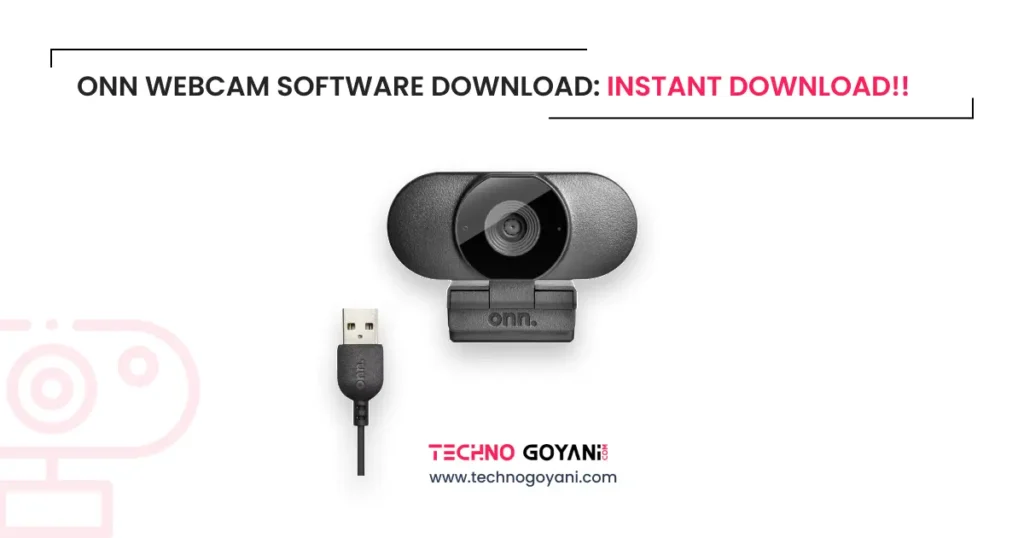
If you are looking for ONN webcam software, you may not need to download a separate program to use your webcam. Many ONN USB webcams are designed to work with the camera drivers included in Windows and other compatible operating systems.
Once you connect the webcam, your computer may recognize it automatically, allowing you to use it with the Windows Camera app, Zoom, Google Meet, Microsoft Teams, and other video applications.
However, the exact setup process depends on your ONN webcam model, computer, and operating system. Some users need to enable camera permissions, select the correct video input, or troubleshoot a driver issue before the webcam works properly.
This guide explains how to download the correct driver if one is available, install and set up your ONN webcam, adjust its settings, test the microphone, and fix common camera problems.
What Is ONN Webcam Software?
ONN webcam software refers to the drivers, system tools, and video applications used to operate an ONN webcam on a computer. The webcam driver allows the operating system to communicate with the camera, while a camera application lets you view video, take pictures, or join video calls.
For many plug-and-play ONN USB webcams, a separate manufacturer software package is not necessary. Windows can use its built-in USB Video Class driver when the camera supports it. ONN webcam models and their available features can differ, so check the model number on your device or packaging before looking for a specific download.
It is helpful to understand the difference between three types of software:
Webcam driver: Allows your computer to recognize and communicate with the webcam.
Camera application: Displays the webcam feed and may let you capture photos or videos. Windows Camera is one example.
Video conferencing software: Applications such as Zoom, Google Meet, and Microsoft Teams use the webcam for meetings and calls.
Installing a video application does not necessarily require a special ONN driver, and downloading an unrelated webcam utility is usually unnecessary.
Download Software for Onn Webcam
ONN Webcam Software Download: Where Can You Get It?
If you need ONN webcam software, start by identifying your exact webcam model and checking the manufacturer’s or retailer’s product information.
You can browse the ONN webcam listings on Walmart to identify your product. For example, Walmart lists an ONN 1440p webcam with autofocus and a built-in microphone that supports USB plug-and-play operation on compatible PCs and Macs.
There is no single universal driver package that you should assume works with every ONN webcam. If your model does not have a separate downloadable driver, the operating system’s built-in driver may be all you need.
Follow these steps before downloading anything:
- Check the model number printed on the webcam, label, packaging, or product receipt.
- Find the matching product information on Walmart’s website.
- Check the operating systems and connection requirements listed for that model.
- Connect the webcam and see whether your computer recognizes it automatically.
- If the camera is not detected, use the operating system’s driver-update tools or consult Microsoft’s official camera troubleshooting guide.
Avoid downloading files from websites that claim to offer a universal ONN webcam driver without identifying the actual hardware. Unverified driver packages can contain unwanted programs or install software that your webcam does not need.
How to Install an ONN Webcam on Windows 11
Most USB webcams that are compatible with Windows can be installed without a complicated setup process. Use the following steps to connect your ONN webcam to a Windows 11 computer.
Step 1: Connect the Webcam
Attach the webcam to your monitor or place it on a stable surface. Connect its USB cable directly to an available USB port on your computer.
If your computer only has USB-C ports and the webcam has a USB-A connector, use a compatible adapter.
Wait a few moments for Windows to detect the device and configure the appropriate driver.
Step 2: Open the Windows Camera App
Click Start, search for Camera, and open the Windows Camera app.
Allow the app to access the camera if Windows requests permission. If your ONN webcam is recognized, you should see its live video preview.
If the preview shows your laptop’s built-in camera instead, look for the camera-switching control in the app, if available, and select the external webcam.
Step 3: Check Camera Permissions
If the camera does not display a picture, check the Windows privacy settings.
Open Settings > Privacy & security > Camera.
Make sure camera access is enabled. Turn on access for the relevant application and, when needed, allow desktop applications to access the camera.
The exact controls may vary slightly by Windows version. For additional assistance, consult Microsoft’s camera support instructions.
Step 4: Select the Webcam in Your Application
Open your preferred video conferencing application and navigate to its audio and video settings.
Choose your ONN webcam as the camera input. If the device includes a microphone, select it as the audio input as well, unless you prefer another microphone.
Your webcam should now be ready for compatible video calls, recordings, and online meetings.
How to Install an ONN Webcam on Windows 10
The installation process is similar on Windows 10. Connect the camera to a USB port and allow Windows to detect it.
Open the Camera app to check whether the webcam displays video. If it does not, open Windows Settings and review the camera privacy controls.
Depending on your Windows 10 version, these settings are available under Settings > Privacy > Camera. Ensure that camera access is enabled for the device and the application you want to use.
You can also open Device Manager to check the driver.
- Right-click the Start button and open Device Manager.
- Expand Cameras or Imaging devices, depending on how the webcam appears.
- Locate the ONN webcam or the relevant USB camera device.
- Right-click the device and select Update driver.
- Choose Search automatically for drivers.
Windows will check for an appropriate driver. If the webcam still does not work, follow the troubleshooting steps later in this guide.
Does an ONN Webcam Need a Separate Driver?
Not always. Many ONN webcams use standard USB webcam functionality and can operate with the built-in drivers provided by the operating system.
When a compatible webcam is connected, Windows may install or activate the required driver automatically. In that situation, there is no need to download a separate ONN webcam driver merely because you want to use the camera.
A manual driver check may be necessary if the webcam is not detected, appears with an error in Device Manager, or stops working after a system update.
If Windows does not find a suitable driver, check the product’s model-specific documentation before installing anything else.
How to Update an ONN Webcam Driver
If your ONN webcam is detected but not functioning correctly, updating its driver may help.
On Windows 11, right-click Start and open Device Manager. Expand the camera-related category, right-click your webcam, and select Update driver. Choose the automatic search option and follow any instructions displayed by Windows.
If the automatic search does not resolve the issue, you can use Microsoft’s documented troubleshooting procedure. For some compatible external USB webcams, Microsoft recommends switching to the standard USB Video Device driver from the list of available drivers.
This option should only be used when appropriate for the device. Switching to a generic driver can remove access to features that require manufacturer-specific software. If the camera is already working properly, there is generally no reason to change its driver.
For detailed instructions, visit Microsoft Support: Camera doesn’t work in Windows.
How to Use an ONN Webcam on a Mac
Some ONN webcam models support Mac computers. If your model is compatible, the webcam may work without a dedicated ONN application.
Follow these steps to test it:
- Connect the webcam to your Mac using its USB cable and a suitable adapter if required.
- Open FaceTime, Photo Booth, or another compatible camera application.
- Open the application’s video settings and select the external webcam if the option is available.
- Check the video preview and make sure the webcam is providing a clear picture.
If the camera is not available, check its permissions. Open Apple menu > System Settings > Privacy & Security > Camera, then allow access for the relevant application.
Some apps also have their own camera-selection settings. You may need to close and reopen an application after changing its permissions.
For further details, see Apple’s official guide to controlling camera access on Mac.
Can You Use an ONN Webcam on a Chromebook?
An ONN USB webcam may work with a Chromebook if the particular model supports the device’s operating system and standard USB webcam functionality.
Connect the webcam, open the Chromebook Camera app, and check whether the external camera is recognized. You can also open a compatible video meeting service and select the webcam in its video settings.
If the camera does not appear, disconnect it and reconnect it directly to the Chromebook. Check the website’s camera permissions and make sure ChromeOS is up to date.
Compatibility is model-specific, so consult your product documentation if the camera still cannot be detected.
Google provides information about external devices that work with Chromebooks.
How to Test Your ONN Webcam After Installation
You do not need a special ONN webcam application just to check whether the camera works. You can use a built-in camera app or a trusted video application.
On Windows, open the Camera app and check the live preview. On a Mac, try FaceTime or Photo Booth. On a Chromebook, open the Camera app.
Check the following before your first video call:
Video quality: Make sure your face is visible and the picture is not unusually dark or blurry.
Camera selection: Confirm that the application is using the external ONN webcam rather than another available camera.
Microphone: Speak normally and check the application’s audio input meter or recording preview.
Permissions: Confirm that the operating system and the application have camera and microphone access.
Lighting: Position yourself in front of a light source rather than placing a bright window directly behind you.
You can then open Zoom, Google Meet, Microsoft Teams, or another compatible service and test the webcam in its preview screen.
How to Adjust ONN Webcam Settings
The settings available to you depend on your ONN webcam model and the application you use.
Many basic webcams rely on automatic controls for exposure, white balance, or focus. Some models include autofocus or automatic low-light correction, while others offer fewer adjustments.
To customize your webcam, first open the video settings in your preferred application. Depending on the application, you may be able to change the selected camera, resolution, framing, background effects, or other supported features.
If you need more advanced recording options, you can use a compatible application such as OBS Studio. OBS is a recording and streaming application, not an ONN-specific driver, and it cannot add hardware features that your camera does not support.
For example, choosing a higher recording resolution will not make a lower-resolution webcam produce genuine higher-resolution detail. Always check your specific camera’s supported specifications.
Common ONN Webcam Problems and How to Fix Them
Even when a webcam does not require separate software, it may occasionally fail to work correctly. These solutions address the most common problems.
1. ONN Webcam Is Not Detected
If your computer cannot find the webcam, begin with the physical connection.
Disconnect the webcam and reconnect it to another USB port. Connect it directly to the computer rather than through a USB hub while troubleshooting. If possible, try another computer to determine whether the problem follows the camera.
On Windows, open Device Manager and check the Cameras or Imaging devices category. If the webcam appears with a warning symbol, review its device status and driver options.
If it does not appear anywhere, the problem may involve the USB connection, power, hardware, or device compatibility.
2. ONN Webcam Shows a Black Screen
A black screen does not automatically mean that the webcam needs new software.
First, check whether its lens cover is closed or the lens is blocked. Make sure the correct camera is selected in the application.
Close other applications that may be using the camera, then reopen the Camera app and test the video again. Review your camera permissions and reconnect the device if necessary.
If the webcam works in the Windows Camera app but not in Zoom or another application, check that application’s video settings and permissions.
3. ONN Webcam Is Not Working on Windows 11
Start by testing the webcam in the Windows Camera app. If it works there, the hardware and basic driver are likely functioning, and the problem may be specific to another application.
If it does not work in any application, review camera permissions, install available Windows updates, restart your computer, and check the device in Device Manager.
Microsoft also documents driver reinstallation and the use of the standard USB Video Device driver as possible troubleshooting options for compatible webcams.
4. ONN Webcam Microphone Is Not Working
A webcam’s video and microphone inputs may appear as separate devices in your computer’s settings.
On Windows, open Settings > System > Sound and look under the input-device options. Select the webcam’s microphone if it is available, then speak and check whether the input level changes.
Next, open your meeting application’s audio settings and select the correct microphone. Check that microphone access is enabled and that the application is not muted.
If no webcam microphone appears, check the product specifications to confirm that your model includes one.
5. ONN Webcam Picture Is Blurry
Start by cleaning the lens gently with a suitable soft cloth. Make sure the subject is positioned at an appropriate distance from the camera and that the room has enough light.
If your webcam supports autofocus, give it time to adjust and avoid placing a distracting object close to the lens. You can also test the camera at a different angle.
A higher advertised resolution does not guarantee a sharp picture in every lighting condition. Image quality depends on the camera hardware, light, focus, application settings, and other factors.
6. ONN Webcam Keeps Disconnecting
Intermittent disconnections can result from a loose connection, a problematic USB port, a hub, or a system issue.
Reconnect the webcam firmly and test a different port. Avoid using an unpowered USB hub while diagnosing the problem. Restart the computer and check for operating system or driver updates.
If the webcam disconnects on multiple computers with different ports and cables or adapters, the device itself may require further inspection.
7. ONN Webcam Works in One App but Not Another
When the camera works in one application but fails in another, the problem may involve permissions, camera selection, or an application-specific setting.
Open the affected application and find its video settings. Select the ONN webcam explicitly, grant camera access if requested, and close other programs that may be using the camera.
Restart the affected application and test it again. You usually do not need to reinstall the entire webcam driver just because one application cannot access the camera.
Is ONN Webcam Software Safe to Download?
The safest approach is to obtain software from the operating system provider or a verified product-support source.
Before downloading an ONN webcam driver, confirm that it matches your model and operating system. Be cautious with generic driver-download websites, installers that bundle unrelated programs, and pages that ask you to install unknown utilities before providing a file.
If Windows already recognizes the webcam and it works as expected, leave the working driver in place. There is no benefit in installing an unrelated driver simply to have additional software on your computer.
For system-level camera problems, Microsoft’s official support documentation is a more reliable starting point than an unknown driver package.
Frequently Asked Questions About ONN Webcam Software
Where can I download ONN webcam software?
Start with the ONN webcam listings on Walmart and identify the exact model. Many ONN webcams use built-in operating system drivers, so a separate software download may not be necessary.
Does ONN have an official webcam software download?
A universal software package for every ONN webcam should not be assumed to exist. Available support depends on the model. Check its product documentation and verified support information before downloading a driver.
Does ONN webcam work without installing a driver?
Many compatible ONN USB webcams are plug-and-play devices and can use the operating system’s built-in webcam driver. If your camera is not recognized, check its model-specific compatibility and driver status.
How do I install ONN webcam drivers on Windows 11?
Connect the webcam, open Device Manager, locate it under Cameras or Imaging devices, and choose Update driver if necessary. Try the automatic driver search first, and use model-appropriate troubleshooting steps if Windows cannot resolve the issue.
Is ONN webcam compatible with Windows 10?
Compatibility depends on the model. Many ONN USB webcams are designed for PC use, but you should check the specific product documentation for supported operating systems.
Can I use an ONN webcam on Mac?
Some ONN webcam models support Mac computers. If yours is compatible, connect it, select it in a camera-enabled application, and allow camera access in macOS settings when prompted.
Does an ONN webcam work with Zoom?
A compatible ONN webcam can be used with Zoom when the computer recognizes it and the application has permission to access it. Select the webcam in Zoom’s video settings and select the appropriate microphone if your model includes one.
Can I use an ONN webcam with Google Meet?
Yes, provided the webcam is compatible with your computer and browser. Allow camera access to the meeting website, open the meeting’s settings, and choose the ONN webcam as your video source.
Why does my ONN webcam show a black screen?
A closed privacy cover, incorrect camera selection, blocked permissions, another application using the camera, or a driver problem may cause a black screen. Test the webcam in the system’s built-in camera app and work through these possibilities.
Why is my ONN webcam microphone not working?
The wrong audio input may be selected, microphone permissions may be disabled, or your webcam model may not include a microphone. Check the device specifications, operating system sound settings, and your video application’s audio settings.
Can I adjust the resolution of my ONN webcam?
That depends on the camera’s supported resolutions and the application. Choose an available resolution in the recording or video settings, where supported. The camera cannot provide genuine detail beyond its hardware capabilities.
Can I use an ONN webcam for streaming?
A compatible ONN webcam can be used for streaming through applications that support USB cameras, including OBS Studio. Available resolution, frame rate, and other features depend on the camera model.
Should I use third-party driver updater software?
Usually, no. Start with the operating system’s driver tools and verified product documentation. Avoid installing third-party driver utilities unless you have a specific, well-verified reason to use them.
Final Thoughts
Finding the right ONN webcam software starts with knowing your webcam model and checking whether your operating system already supports it. Many compatible USB webcams can work without a separate driver download, making setup as simple as connecting the camera, granting the necessary permissions, and selecting the right video input.
If your ONN webcam is not working, test it in a built-in camera application before downloading anything. Then check USB connections, privacy settings, device selection, microphone settings, and driver status. These steps can help resolve common issues without unnecessary software installation.
For the most reliable result, use model-specific product information and official operating system support resources whenever you need a driver or additional troubleshooting assistance.
I hope this post helped you to solve your problem. Thank you for visiting technogoyani.com. See you again!!
Also Check: Download Onn Mouse Software Or Onn Keyboard Software Download