Beast X 4K
Get the latest WLmouse Beast X 4K software, firmware, drivers, and essential utilities to optimize performance, update your mouse, and enjoy a smooth gaming experience.
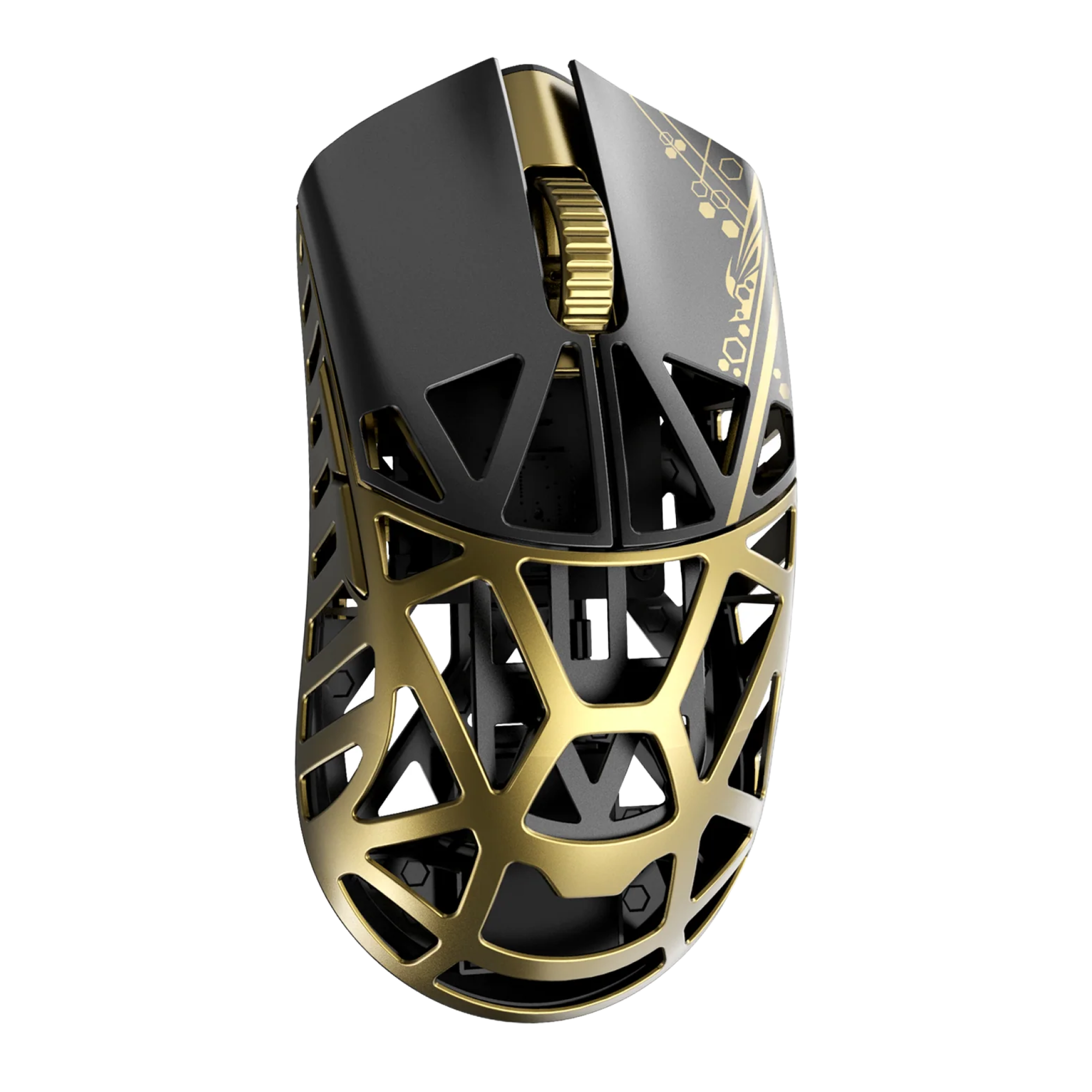
Wlmouse Beast X 4K
RecommendedSoftware package for WLMouse Beast X 4K that provides essential tools for configuring, customizing, and managing your gaming mouse.
Looking for the WLmouse Beast X 4K Mouse Software? The dedicated desktop driver lets you customize important mouse settings such as DPI, lift off distance, polling rate, Motion Sync, Slam Click Prevention, button functions, and macros.
Use the download button on this page to get the software and configure your Beast X 4K according to your gaming or everyday preferences.
What Can You Do With the Beast X 4K Software?
The WLmouse software is useful when you want more control over how your mouse responds. Instead of relying only on the default settings, you can adjust several performance and control options from the software.
DPI Settings
Change the DPI level to match your preferred cursor speed and gaming sensitivity. Different DPI settings can be useful for everyday work, FPS games, browsing, and other applications.
Polling Rate
The software lets you configure the USB polling rate. Higher polling rates can provide more frequent communication between the mouse and computer, while lower settings can be useful when you prefer reduced power consumption.
Lift Off Distance
Adjust the mouse lift off distance to control how the sensor behaves when you slightly lift the mouse from the surface.
Motion Sync
Motion Sync is available as a configurable mouse feature through the dedicated software. It can be useful for users who want to fine tune tracking behavior.
Slam Click Prevention
The software includes Slam Click Prevention, which can help users configure the mouse behavior related to unwanted clicks caused by aggressive movement or impact.
Button Configuration
You can change mouse button functions to suit your preferred controls. This can be helpful for gaming, shortcuts, productivity, and other tasks.
Macro Settings
The software also provides macro functionality, allowing users to configure sequences of actions for supported use cases.
These customization options are documented for the Beast X series software, including DPI, LOD, Motion Sync, Slam Click Prevention, polling rate, macros, and click function changes.
How to Install WLmouse Beast X 4K Software?
Installing the Beast X 4K software is straightforward.
Step 1: Download the Software
Click the download button above and save the WLmouse software installer to your computer.
Step 2: Connect Your Mouse
Connect the WLmouse Beast X 4K to your computer. Using a wired connection can make initial setup easier.
Step 3: Run the Installer
Open the downloaded installer file and follow the installation instructions shown on your screen.
Step 4: Open the WLmouse Software
After installation, launch the WLmouse software and check that your Beast X 4K is detected.
Step 5: Adjust Your Settings
Choose the settings you need, such as DPI, polling rate, lift off distance, button functions, and other available options.
Step 6: Save Your Configuration
Save your preferred settings so your mouse is ready to use with your selected configuration.
Why Should You Install the Software?
The Beast X 4K can be used without constantly changing settings, but the dedicated software is useful when you want to personalize the mouse.
You can create a setup that matches your sensitivity, preferred polling rate, button layout, and other preferences. This is especially useful for gamers who want consistent controls across different sessions.
WLmouse Beast X 4K Software Not Detecting the Mouse
If the software does not recognize your mouse, try these basic steps.
Check the USB Connection
Reconnect the mouse and make sure the cable is firmly connected.
Restart the Software
Close the WLmouse application completely and open it again after connecting the mouse.
Try Another USB Port
A different USB port can help identify a connection issue.
Restart Your Computer
Restarting Windows can resolve temporary device or driver detection problems.
Reinstall the Software
Remove the existing software and install the available Beast X 4K desktop driver again.
Firmware Update Tips
Firmware updates should be handled carefully. For Beast X series firmware updates, the manufacturer support documentation recommends using the original cable and avoiding cable removal or interruptions during the update process.
Do not disconnect the mouse while a firmware update is running.
Frequently Asked Questions
Is the WLmouse Beast X 4K software free?
The dedicated Beast X 4K desktop driver is provided through the WLMOUSE download resources.
What settings can I change?
Depending on the software version, you can configure DPI, lift off distance, polling rate, Motion Sync, Slam Click Prevention, button functions, and macros.
Can I use the software with other WLmouse models?
WLmouse provides separate download entries for different mouse models, so you should select the software specifically listed for your device. The official download page currently lists Beast X 4K separately from models such as Beast X Mini, Beast X Pro, and Beast X Max.
Should I update the firmware?
A firmware update can be useful when a newer update is available for your exact model. Always use firmware intended for the Beast X 4K and avoid interrupting the update process.
Final Words
The WLmouse Beast X 4K Mouse Software gives you greater control over the mouse by providing access to important customization settings. You can adjust DPI, polling rate, lift off distance, button functions, macros, and other supported features from the desktop driver.
For the best experience, download the software specifically listed for the WLmouse Beast X 4K and keep your mouse connected while changing or saving settings.